To prevent email overload a large number of users it is possible to set restrictions on email distribution groups.
Restriction can be set either by the owner of the distribution group or by your IT department.
Please read the HowTo Distribution lists on how to set this restriction as an owner.
How to notice restriction have been applied to an email distribution group?
If you compose an email and have added an email address of a restricted group a message will appear at the top of your email telling you that this recipient is moderated.

When you send an email to such a group it requires action from a moderator before it will be delivered. Every moderator will receive an email which you can recognize by the subject: Approval requested: +Title of the email.
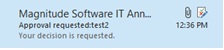
Moderator Options:
When, as a moderator, you receive such an Approval requested email you have multiple options.
Note: All approvers listed will receive this Approval requested email. The first to respond triggers the action that will follow.
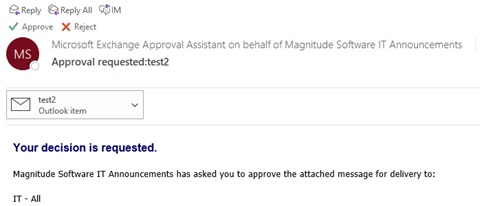
- Reply: This enables you to reply to the sender.
- Reply All: In case there are multiple recipients, and the restricted group is one of them, then the email will be delivered to all the recipient except the restricted group. By reply to all you can sent an email to all the recipients excluding the restricted group.
- IM: Enabled you to have a Teams chat with the sender of the email.
- Approve: You give your approval, and the email will be delivered to all recipients of that email distribution group.
- Reject: If you reject this email then it will not be delivered to the recipients within that email distribution group. A rejection notification will be sent to the sender of this message to inform him of his email being rejected. By rejecting an email, you will be prompted with the option to send a response to the sender.
- If you decide not to action this approval request, nothing will happen and the email stay queued.
Comments
0 comments
Please sign in to leave a comment.